Chapter 6: High-Fidelity Visualization with Unity
Chapter 6: High-Fidelity Visualization with Unity
Objective: Use the Unity real-time 3D platform as a high-fidelity visualizer for ROS 2 and Gazebo simulations, creating a "digital twin."
6.1 Why Unity? The Simulator vs. The Visualizer
In the last chapter, we used Gazebo to create a physically accurate simulation. Gazebo is a workhorse for robotics; it provides robust physics, simulates sensors, and has deep integration with ROS. However, its graphical rendering, while functional, is not its primary strength.
This is where a real-time development platform like Unity comes in. Unity is a world-class engine known for creating video games, architectural visualizations, and interactive media. Its strengths are in high-fidelity graphics, advanced rendering pipelines, a rich asset store, and a C# development environment that is exceptionally well-suited for creating complex user interfaces and interactions.
By integrating Unity with ROS 2, we adopt a "best of both worlds" strategy:
| Feature | Gazebo (The Simulator) | Unity (The Visualizer) |
|---|---|---|
| Primary Role | Simulate physics, sensors, and robot dynamics. | Render photorealistic scenes, create UIs, and enable human interaction. |
| Physics Fidelity | High (tuned for robotics). | High (tuned for games/media). |
| Graphics Quality | Functional, but basic. | State-of-the-art, photorealistic. |
| Asset Ecosystem | Gazebo Fuel (robotics models). | Unity Asset Store (vast library of 3D models, textures, tools). |
| Community | Robotics research and development. | Game development, VR/AR, film, and media. |
Important Note: In this "digital twin" architecture, Unity's role is exclusively for visualization. The "source of truth" for the robot's state, physics, and control logic remains firmly within Gazebo and ROS 2. We will stream data from ROS to Unity, not replace Gazebo's physics.

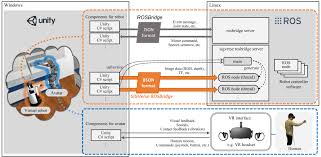
6.2 Setting up the Unity Robotics Hub
The Unity Robotics Hub is a set of open-source packages that dramatically simplify ROS 2 integration. The key component is the ROS-TCP-Connector, which handles the network communication between Unity and ROS.
- Install Unity Hub and Editor: Download Unity Hub from the official Unity website. From the Hub, install a recent LTS (Long Term Support) version of the Unity Editor, such as 2022.3 LTS.
- Create a New Project: In Unity Hub, create a new 3D project. You will be asked to choose a render pipeline. The Universal Render Pipeline (URP) is an excellent choice, offering a great balance between visual quality and performance.
- Install ROS-TCP-Connector:
- With your Unity project open, navigate to
Window > Package Manager. - Click the
+icon in the top-left corner and selectAdd package from git URL.... - Enter the following URL:
https://github.com/Unity-Technologies/Unity-Robotics-Hub.git?path=/com.unity.robotics.ros-tcp-connector#main - Unity will download and install the package and its dependencies.
- With your Unity project open, navigate to
How the Connector Works
The ROS-TCP-Connector establishes a bridge between the two systems. On the ROS 2 side, you run a special node called ros_tcp_endpoint. This node acts as a TCP client that connects to a TCP server running inside the Unity Editor. All ROS messages are serialized, sent over the TCP socket, and then deserialized by Unity into C# objects, and vice-versa.
6.3 Creating a Digital Twin: Step-by-Step
Let's walk through the process of creating a visual twin of a robot that is being simulated in Gazebo.
Step 1: Import Your Robot into Unity
The Unity Robotics Hub includes a URDF Importer. This tool reads your robot's URDF file and automatically creates a Unity "prefab" (a reusable asset) from it.
- Navigate to
Robotics > URDF Importerin the Unity menu. - Select your robot's URDF file.
- The importer will parse the file and generate a hierarchy of GameObjects that mirror your robot's links. Crucially, it will add
ArticulationBodycomponents to each link, which are Unity's specialized joints for robotic physics. Even though we aren't using Unity's physics, these bodies are the standard way to control the model's joint positions.
Step 2: The ROS 2 to Unity Workflow
The ROS-TCP-Connector allows Unity to subscribe directly to ROS 2 topics. We need to ensure the data Unity needs is available.
- Gazebo Side: Your Gazebo simulation must be publishing the robot's state. This is usually done with the
joint_state_broadcasterplugin (to publish/joint_states) and a differential drive plugin (to publish/odomandtf). - ROS 2 Side: The
robot_state_publishernode must be running. It subscribes to/joint_statesand publishes thetftransforms for every link in the robot. - TCP Endpoint: The
ros_tcp_endpointnode must be running. It acts as the bridge, forwarding messages to and from Unity.
Step 3: Create a C# Controller Script
In Unity, create a C# script to receive the ROS data and apply it to the robot model.
using UnityEngine;
using Unity.Robotics.ROSTCPConnector;
using RosMessageTypes.Sensor; // Namespace for sensor_msgs/JointState

public class RobotController : MonoBehaviour
{
    // The ROS Connection instance
    private ROSConnection ros;

    // A dictionary to map joint names from ROS to their corresponding ArticulationBody in Unity
    private Dictionary<string, ArticulationBody> jointArticulationBodies;

    void Start()
    {
        // Get the ROS connection instance
        ros = ROSConnection.GetOrCreateInstance();

        // Initialize the dictionary
        jointArticulationBodies = new Dictionary<string, ArticulationBody>();

        // Find all ArticulationBody components in the children of this GameObject
        var articulationBodies = GetComponentsInChildren<ArticulationBody>();
        foreach (var body in articulationBodies)
        {
            // The URDF Importer often names the GameObject the same as the joint
            jointArticulationBodies[body.name] = body;
        }

        // Subscribe to the /joint_states topic
        ros.Subscribe<JointStateMsg>("/joint_states", UpdateJoints);
    }

    // Callback function executed when a JointState message is received
    void UpdateJoints(JointStateMsg jointState)
    .
        for (int i = 0; i < jointState.name.Length; i++)
        {
            var jointName = jointState.name[i];
            var jointPosition = (float)jointState.position[i];

            if (jointArticulationBodies.ContainsKey(jointName))
            {
                var joint = jointArticulationBodies[jointName];

                // ArticulationBody stores joint position in a drive's target
                var drive = joint.xDrive;
                // Convert from radians (ROS standard) to degrees (Unity standard)
                drive.target = jointPosition * Mathf.Rad2Deg;
                joint.xDrive = drive;
            }
        }
    }
}
Attach this script to the root GameObject of your imported robot model. When you press "Play" in Unity and your ROS 2 simulation is running, this script will connect to ROS, receive the joint states, and animate your robot model in real time, creating a high-fidelity visual replica of your Gazebo simulation.